
Remove EXIF Metadata and GPS from Photos: Easy Guide
Learn how to remove EXIF metadata and GPS location from photos before sharing and avoid exposing personal details. Follow the step-by-step guide.
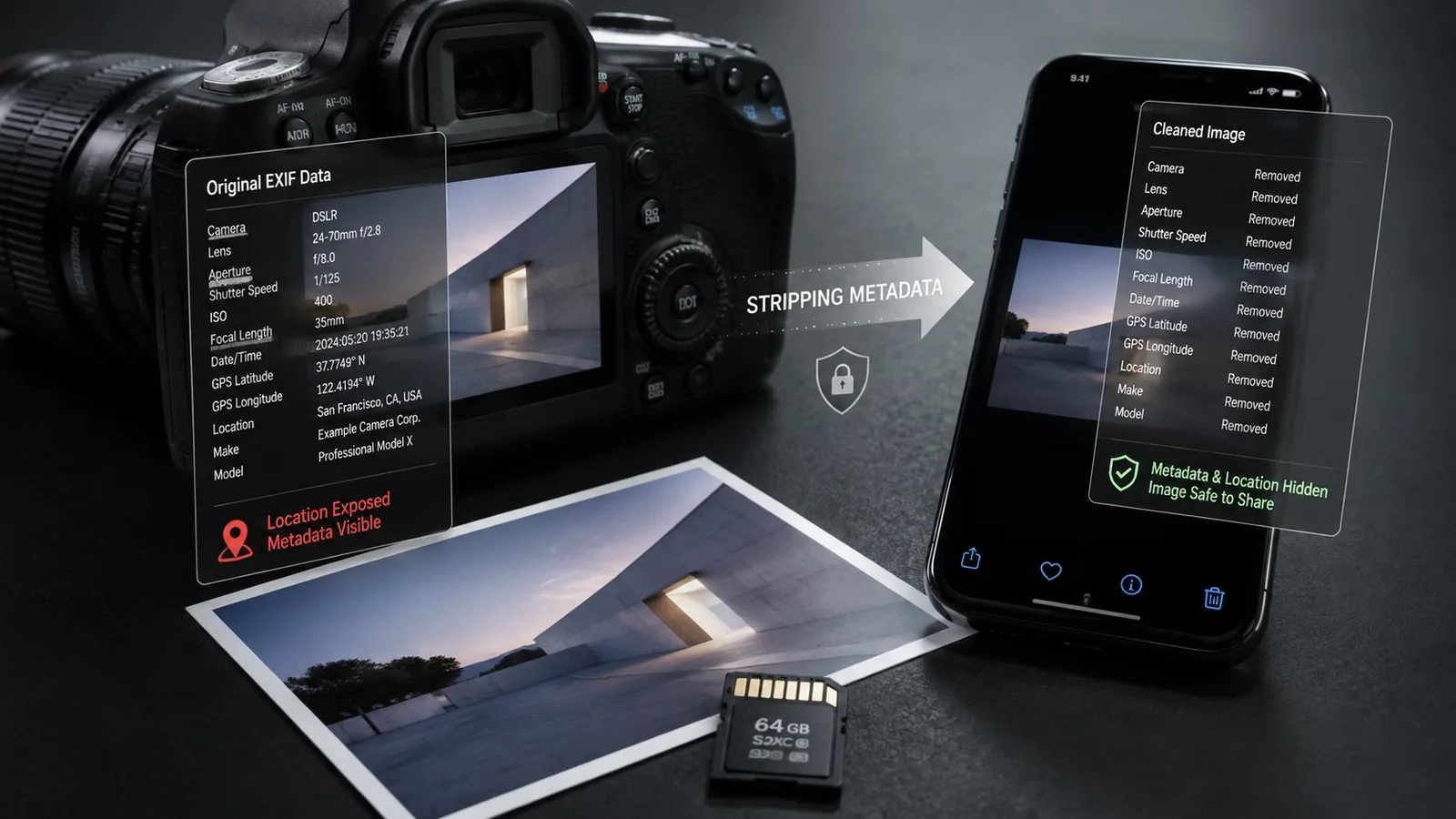
How to Remove EXIF Metadata and GPS Location from Photos Before Sharing
A photo can reveal more than what you see on the screen. Along with the people, objects, and places shown in the image, the file may contain technical information about when and how it was created. In some cases, that hidden information includes the date, the device model, camera settings, and the exact coordinates where the picture was taken.
This information is known as metadata. In digital photos, much of it is commonly stored as EXIF data. Metadata is not harmful by itself. It can help you sort pictures, troubleshoot camera problems, improve edits, or remember where a photo was taken. The concern begins when you send the original file to someone else or upload it publicly without knowing what is attached to it.
Removing unnecessary metadata is a simple privacy step. It does not make a photo anonymous, and it does not hide information that is visibly present in the image. It does, however, reduce the amount of hidden information that can travel with the file.
What photo metadata is
Metadata is data that describes a file. For a photograph, it acts like a technical record created by the phone, camera, scanner, or editing program.
A photo may contain information such as:
- the date and time it was captured;
- the phone or camera manufacturer and model;
- image width and height;
- image orientation;
- shutter speed;
- lens aperture;
- ISO setting;
- focal length;
- the software used to edit or export the picture;
- an author or copyright name;
- an embedded thumbnail;
- latitude and longitude;
- altitude or camera direction.
Not every image includes all of these fields. Some contain only basic details, while others hold a long list of camera settings. Fields can also be missing, outdated, or changed by an app.
What EXIF means
EXIF stands for Exchangeable Image File Format. It is a standard used mainly in photographic image files, especially JPEG and TIFF, to store details about the capture.
When you take a picture, your device may record the time, orientation, exposure settings, and other camera information automatically. If the camera app is allowed to use location services, it may also save GPS coordinates.
Other image formats, including PNG, WebP, and HEIC, can carry metadata too, although they do not always use the same structure as traditional EXIF. This matters because a reliable cleanup method should inspect the actual file format instead of treating every image in exactly the same way.
How GPS location gets attached to a photo
Most people do not type a location into a photo manually. The information is added because the camera app has permission to access the device's location.
A phone may estimate its position using GPS satellites, nearby Wi-Fi networks, cell towers, or a combination of these sources. It can then store latitude and longitude inside the image file. Those coordinates may point to a home, workplace, school, medical office, hiking route, hotel, or any other place.
On a phone, the setting may be called “save location,” “location tags,” “geotagging,” or something similar. It can be useful for organizing a photo library on a map, but it is worth reviewing before original files are shared outside that library.
Why hidden location data can matter
The level of risk depends on the photo and the situation. A landscape taken at a well-known public viewpoint may not expose anything unexpected. A picture taken inside a private home can be different, especially if the file contains precise coordinates.
Several common situations deserve extra care.
Photos of children
A picture may reveal the location of a home, school, sports facility, or regular activity. Even when the building name is not visible, embedded coordinates can provide an additional clue.
Online listings
People often photograph items for sale at home. An original image attached to a public listing may disclose the approximate place where the item and seller are located.
Forums and support communities
Someone may upload an image while asking about health, repairs, safety, employment, or a personal dispute. Hidden location or author information can make it easier to connect the post with a real identity.
Work images and documents
Photos of screens, equipment, prototypes, whiteboards, or paperwork may contain device and editing details. The visible content is usually the first thing to protect, but metadata adds another layer of information.
Travel photos shared immediately
A geotag can show where a person is at that moment. A series of dated, located images may also reveal movement patterns or routines.
How to check whether a photo contains EXIF or GPS data
You cannot tell by looking at the picture alone. A completely ordinary image may contain coordinates, a timestamp, and device details.
Many phones and desktop systems display some metadata in the photo information panel. You might see a map, the camera model, or the date and time. This suggests that location information is available, but it does not always prove that every displayed detail is embedded in the exported file.
There are two possible sources:
- metadata stored inside the file, which can travel when the image is copied;
- information stored by the photo library or cloud service, which may not be part of the file itself.
To be certain, inspect the exact copy you plan to share. A good metadata viewer should list the fields it finds without forcing you to publish the photo. For sensitive images, prefer a tool that works locally on your device or clearly explains whether the file is uploaded to a server.
Ways to remove metadata before sharing
The best approach depends on your device, the number of photos, and whether you want to remove only the location or all optional information.
1. Use the share option that removes location
Some phones offer a setting to exclude location when you share a photo. It may appear in the share sheet, the photo information screen, or the gallery settings.
This is convenient, but check what it actually removes. Some options strip GPS only, while other export features remove a broader set of metadata. The result should be treated as a new copy and inspected if the image is sensitive.
2. Turn off camera location for future photos
Both Android phones and iPhones allow you to deny location access to the camera app. Menu names vary by system version and manufacturer, but the setting is usually found under app permissions or privacy controls.
Disabling this permission prevents new photos from receiving GPS coordinates. It does not clean old pictures. Files already created must be handled separately.
3. Make a clean copy
A practical workflow is to keep the original in private storage and create a separate copy for sharing. An image editor or metadata-cleaning tool can write a new file without selected fields.
A dependable cleanup tool should:
- show which metadata was detected;
- highlight GPS information clearly;
- let you remove all metadata or GPS only;
- preserve image dimensions unless you choose to resize;
- explain whether the image will be recompressed;
- create a separate output file instead of silently replacing the original;
- allow the cleaned file to be checked again.
4. Export from an image editor
Many photo editors include an export option that excludes metadata. Look for settings such as “remove personal information,” “exclude location,” or “do not include metadata.”
Do not assume that opening and saving the image is enough. Some programs preserve the original fields by default, while others add the editor name, color profile, or new timestamps. Review the export options before saving.
5. Use a screenshot only when necessary
Taking a screenshot usually creates a new image and often leaves behind the original photo's detailed EXIF record. However, it is an imperfect workaround.
A screenshot can lower resolution, change colors, include interface elements, and cut off part of the image. The new file will also have its own creation date and may contain other metadata. Use this method only when better options are unavailable, and inspect the result.
Should you remove GPS only or all metadata?
The right choice depends on why the image is being shared.
Removing GPS only protects the capture location while keeping camera settings that may be useful for photography discussions, technical support, insurance records, or personal organization.
Removing all optional metadata is usually better for public posts, anonymous communities, sales listings, or files sent to people you do not know.
A cleaned image still needs basic structural information to display correctly. It may also retain a color profile so colors look consistent. The goal is not to remove every byte that is not a visible pixel. The goal is to remove unnecessary descriptive fields that do not need to leave your device.
Will metadata removal reduce image quality?
It depends on the method.
For JPEG files, some tools can remove metadata blocks without decoding and recompressing the image. In that case, the visible pixels remain unchanged, and the file may become slightly smaller.
Other methods open the image and save a new JPEG. That introduces another round of compression. The loss may be difficult to notice at a high quality setting, but repeated saves or aggressive compression can soften details and create visible artifacts.
For PNG, WebP, HEIC, and other formats, a program may need to rebuild or convert the file. A good solution should tell you the output format and whether dimensions or compression settings will change.
After cleaning, compare:
- width and height;
- sharpness of text and fine details;
- color appearance;
- file size;
- file format;
- the metadata fields that remain.
Common mistakes to avoid
Assuming every social network removes everything
Many platforms process uploaded images and remove some metadata, but behavior can differ by service, upload method, and file type. A picture posted to a feed may be handled differently from a file sent as a document or attachment.
Clean the copy before uploading instead of relying entirely on the destination.
Checking only the original file
Editing, converting, or compressing a picture can remove, preserve, or create new metadata. Inspect the final file that will actually be sent.
Hiding the map in a photo app and assuming the file is clean
A gallery may update its own database without rewriting the original file. Export the photo and check the exported copy.
Uploading a sensitive photo to an unknown service
An online tool may need to send the file to a server. That is not automatically unsafe, but you should know how the service processes the image, whether it stores a copy, and how long any temporary file remains available.
For private material, favor local processing or services with clear retention and privacy information.
Overwriting the only original
Metadata can be useful later. Keep the original in private storage and share a separate cleaned version.
Forgetting what is visible
Removing EXIF will not hide street signs, house numbers, ID cards, reflections, faces, computer screens, paperwork, or recognizable landmarks. Location can often be inferred from the image itself.
Additional checks before you publish
Metadata removal should be part of a wider review.
- Zoom in and inspect the background.
- Look at mirrors, windows, glossy objects, and screens.
- Cover names, addresses, account numbers, and document details.
- Check whether other people agreed to be shown.
- Avoid posting in real time when location is sensitive.
- Share an appropriately sized copy instead of the full original when full resolution is unnecessary.
- Review the filename, which may contain a date, client name, project name, or personal description.
For work teams, a simple routine helps: duplicate the file, review visible content, remove metadata, inspect the result, and then share it.
How to confirm that cleanup worked
Do not rely only on a “completed” message. Open the cleaned copy in a metadata viewer and confirm that latitude and longitude are gone.
If you intended to remove everything, also look for the device model, software name, author, comments, copyright fields, and embedded thumbnails. Then make sure the image opens normally and its dimensions have not changed unexpectedly.
Before processing a large batch, test the method with a non-sensitive image. This helps you understand how the tool handles different formats and whether it changes quality or filenames.
A safer habit for everyday photo sharing
Removing EXIF and GPS data is not a complete privacy solution, but it is a useful and manageable precaution. It prevents hidden technical information from traveling with a photo when that information serves no purpose for the recipient.
A good routine is straightforward: keep the original private, create a copy for sharing, remove unnecessary fields, inspect the cleaned file, and review everything visible in the image. These steps take little time and give you much more control over what leaves your device.