How to Remove EXIF, Metadata, and GPS from Photos Before Sharing
Learn what data a photo can contain, when it becomes a privacy risk, and how to create a clean copy before sharing it.
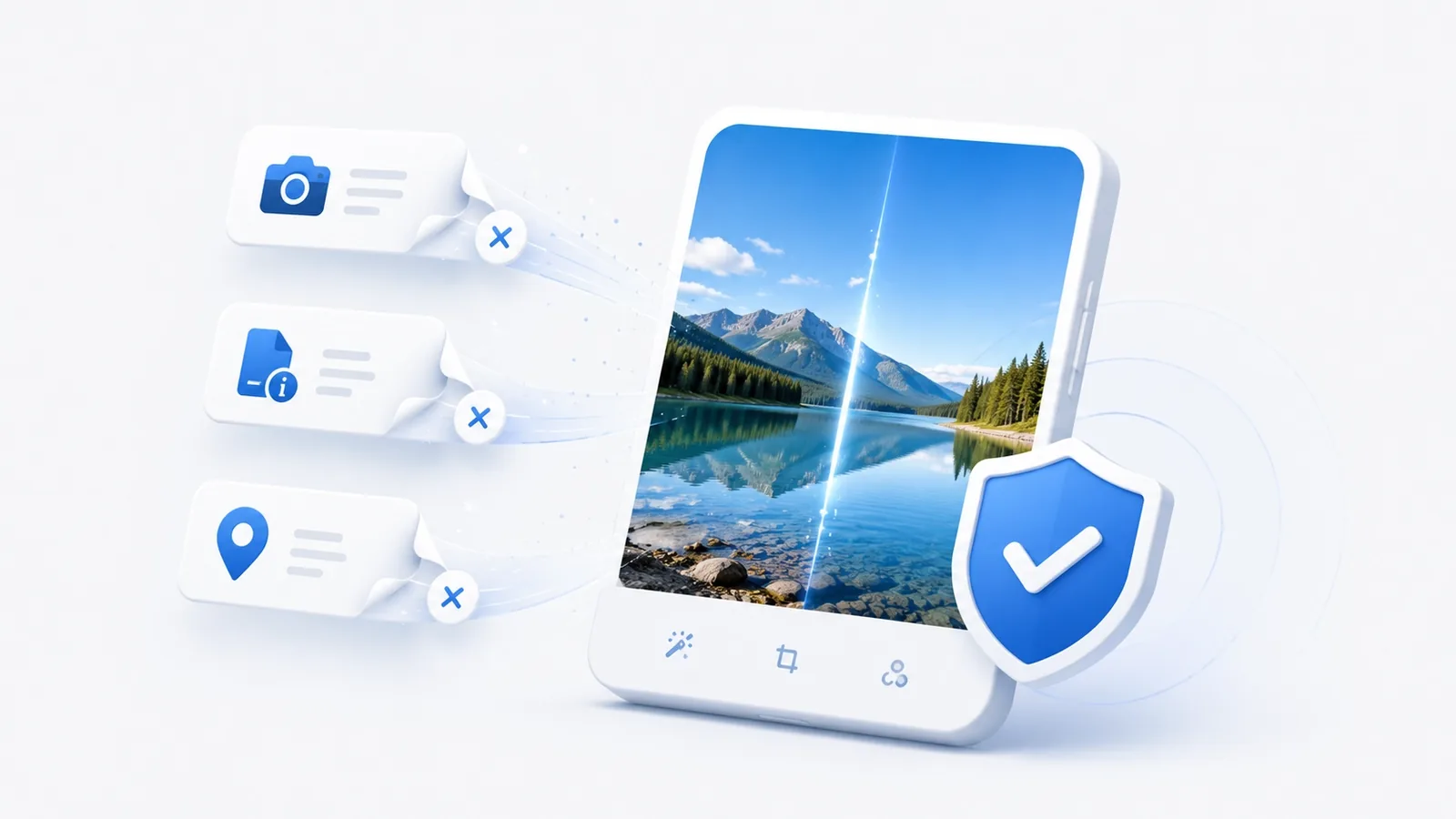
A digital photo can carry more than the image you see on screen. Depending on the device, app, and file format, it may also store the capture date, camera model, lens information, editing software, and sometimes the location where the picture was taken.
That hidden information is called metadata. In photography, the best-known standard is EXIF. Most of the time EXIF is useful: it helps organize photo libraries, study camera settings, and preserve technical details. It becomes a privacy issue only when a file is shared with information that did not need to travel with it.
This guide explains what photo metadata actually contains, why GPS deserves special attention, and how to create a cleaner copy before publishing or sending an image.
What are EXIF and photo metadata?
Metadata is information stored alongside the visible image. You do not normally see it when you open the photo.
A JPEG from a phone or camera may contain fields such as camera make and model, original date and time, image orientation, ISO, aperture, shutter speed, focal length, lens model, and software information.
Some files may also carry:
- copyright details;
- comments;
- embedded thumbnails;
- color information;
- modification dates;
- GPS coordinates.
EXIF is only one metadata format. PNG and WebP can also store additional information in their own structures.
That distinction matters because "remove EXIF" and "remove all metadata" are not technically identical. In everyday privacy discussions, however, the goal is usually the same: reduce the amount of invisible information attached to the copy you plan to distribute.
Why GPS metadata deserves more attention
Location is one of the most sensitive pieces of photo metadata.
If location tagging was enabled when the picture was taken, the file may contain latitude and longitude. Those coordinates can point to a street, workplace, business, or home.
Imagine a photo of a laptop being posted for sale. The frame shows only the product against a plain wall. No signs or landmarks are visible. If the original JPEG still carries GPS coordinates, however, the location may be embedded in the file itself.
The same issue can apply to photos of pets, valuable items, documents, vehicles, equipment, indoor spaces, or work sites.
The picture may look anonymous while the file carries additional context.
Not every phone photo includes location. GPS depends on camera permissions, device settings, and what has happened to the file since it was captured.
Is metadata always a privacy problem?
No. Context matters more than the mere existence of EXIF.
For a photographer, knowing the lens, aperture, shutter speed, and ISO can be useful. In a photography community, those fields may even be part of the discussion.
In a marketplace listing or a technical support attachment, the same information may serve no purpose.
A better way to evaluate metadata is to ask:
- What information is stored?
- Who will receive the file?
- Does that information help the recipient?
A capture date on its own may be harmless. Combine it with precise location and a private event, and it can reveal much more.
The goal is not to treat every metadata field as dangerous. It is to understand what leaves your device.
When is metadata removal worth doing?
A clean copy is most useful when the file is leaving your control.
Common examples include:
- marketplace photos;
- files sent to strangers;
- images attached to forums;
- support ticket screenshots or photos;
- photographed documents;
- pictures taken inside private spaces;
- photos of expensive equipment;
- images published in public portfolios.
In these situations, the visible image is usually what matters. Camera model, exact capture time, or GPS may add nothing useful.
It also helps to separate archiving from sharing. You can keep the untouched original in your own library and create a second copy specifically for distribution.
That is usually safer than destroying the only original file.
Remove GPS only or remove all metadata?
Both approaches are valid.
Remove GPS only
This makes sense when location is the sensitive detail but the photographic information still matters.
A photographer may want to preserve lens, exposure, ISO, and camera data while removing where the image was taken.
Remove all metadata
This is simpler when none of the attached information has value for the recipient.
For public posts, unknown recipients, and routine sharing, a fully cleaned copy is often easier to reason about.
There is no universal rule saying all EXIF should be removed. The right choice depends on what the file is for.
How to inspect a photo before cleaning it
Inspection is the best first step.
An EXIF viewer reads supported metadata fields without changing the image. JPEG files usually expose the most familiar set of camera, exposure, and location information.
If you want to see this with one of your own files, open an EXIF viewer and remover in the browser and check which fields appear before generating a cleaned copy.
Pay particular attention to:
- latitude and longitude;
- original capture date and time;
- camera make and model;
- lens model;
- software fields;
- copyright information;
- anything that identifies a person, company, or place.
Looking at a real file is useful because metadata stops being an abstract concept. You can see exactly what a normal image carries.
A safer process for removing metadata
A practical workflow has four steps: inspect, decide, clean, verify.
1. Inspect the exact file you plan to share
Do not assume every copy of the same picture has identical metadata.
The original camera JPEG, an edited export, and a version saved by a messaging app can all be different internally.
Check the final file.
2. Decide what needs to remain
If technical camera information is useful, remove only what is sensitive.
If the photo is simply a distribution copy, full cleanup may be easier.
This avoids both extremes: sharing unnecessary information and deleting useful data from your only original.
3. Create a separate clean copy
Avoid overwriting the master file when it has archival value.
Keep:
- the original with its capture information;
- the cleaned copy intended for sharing.
This is especially useful in photography, design, documentation, and any workflow where file history matters.
4. Verify the result
Open the cleaned image and make sure it still looks correct.
If possible, inspect the output again with a metadata viewer. That confirms that GPS or the fields you intended to remove are actually gone.
JPEG, PNG, and WebP are different
Metadata is stored differently across image formats, so cleanup methods can vary.
JPEG
JPEG is the format most closely associated with traditional EXIF.
Metadata is often stored in segments separate from the compressed image data. A cleaner can remove those segments without recompressing the image pixels.
When that method is used, there is no additional generation of JPEG compression loss.
Selective cleanup can also target GPS while keeping other EXIF fields.
PNG
PNG uses a chunk-based structure. A file can contain text, EXIF data, and other auxiliary information.
One common cleaning method is to decode the image and create a new PNG that keeps the visible pixels without copying the old metadata chunks.
WebP
WebP can also carry metadata.
Browser-based tools may clean it by creating a new version of the image. The visual result may remain equivalent for normal use, while file size or encoding changes.
For professional work, keep the untouched original.
Does removing metadata reduce image quality?
Not necessarily.
If a JPEG has only its metadata segments removed, the image pixels do not need to be recompressed. That avoids the quality loss associated with saving a new lossy JPEG generation.
If an image format is rebuilt, the encoding can change. That does not automatically create a visible difference, but it is a reason to check the result.
For everyday sharing, visual comparison is usually enough.
For professional photography, print work, archival storage, or color-sensitive workflows, preserve the original and treat the clean version as a distribution copy.
Removing EXIF does not make a photo anonymous
This is one of the most important points.
Metadata is only one source of information.
The visible picture can reveal identity or location through:
- street signs;
- house numbers;
- reflections;
- documents;
- badges;
- computer screens;
- shipping labels;
- license plates;
- uniforms;
- faces;
- recognizable scenery.
The file name can also reveal context. IMG_2054.jpg usually says little; client-john-home-documents.jpg can reveal information even with no EXIF at all.
Uploading from an identifiable account also keeps the image associated with that account.
Metadata removal is privacy hygiene, not complete anonymization.
Is taking a screenshot enough?
Sometimes it removes a lot of the original metadata, but it is a rough workaround.
A screenshot creates a new image and usually does not preserve the original photo's full camera EXIF. On the other hand, it may change resolution, aspect ratio, quality, and even introduce its own metadata.
It can also crop useful parts of the image.
If your goal is specifically to remove hidden file information, a dedicated cleaning step gives you more control.
Don't social networks remove EXIF already?
Many social networks and messaging apps reprocess images and often discard some metadata.
That should not be treated as a guarantee.
The same service may handle a photo upload differently from a file sent as a document. Apps can also change their behavior over time.
If location is sensitive, remove it before uploading.
That keeps the decision under your control.
A checklist before sharing a photo
A short routine covers most practical risks:
- Look at the visible image for identifying details.
- Check EXIF and GPS when using an original camera or phone file.
- Decide whether technical camera data still has value.
- Remove GPS only when you want to preserve the rest of the EXIF.
- Remove all metadata when it serves no purpose.
- Check the cleaned copy.
- Review the file name.
- Keep the original separately when it matters.
- Clean sensitive files before uploading.
The most useful part is making the process habitual rather than treating metadata as a one-time concern.
Frequently asked questions
Do all phone photos contain GPS?
No. It depends on location permissions, camera settings, and the history of the file.
Can I remove GPS while keeping camera data?
Yes, for compatible files and tools that support selective location removal.
Does stripping EXIF reduce file size?
Sometimes. Metadata occupies space, but it is often a small percentage of the total file.
Can a photo reveal my home address?
If it contains precise GPS coordinates recorded at home, the coordinates can point very close to or directly at that location.
Should I strip metadata from every photo I own?
No. It usually makes more sense to preserve originals and clean the copies you intend to distribute when the attached information is unnecessary.
The useful skill is knowing what you are sending
The key lesson is not that "EXIF is dangerous." It is that a digital photo can carry invisible context.
Once you know that dates, camera information, software, and location may be attached to the file, you can make better decisions. Sometimes keeping metadata is useful. Sometimes it simply does not need to travel with the image.
Try inspecting one original photo of your own, note which fields are present, create a cleaned copy, and compare the two. That small exercise teaches more than memorizing a list of metadata terms because you can see exactly how much extra context a normal image file may contain.